A shared shopping list for the whole household
Ethos keeps shared lists inside a group, so everyone you live with can add to the same shopping list and tick things off from their own iPhone, iPad or Mac. Each item carries the face of the person who added it, ticked items fold away out of sight, and a planned meal’s ingredients go onto the list in one tap. There’s no Ethos account; the list is shared through iCloud.

Making a list
Lists belong to a group, the same group you keep shared routines in. On the group’s page, under Lists, choose “New list”, give it a name such as Shopping, and choose “Make list”. Everyone in the group can add to it and tick it.
A group can hold as many lists as you need: the weekly shop, a packing list for the holiday, the things to fix before visitors arrive. Each one shows on the group’s page with what’s on it and how many are left.
If you don’t have a group yet, sharing routines with your family explains how to make one. Making a group and inviting people comes with Ethos Plus; joining one someone invites you to is free.
Adding and ticking
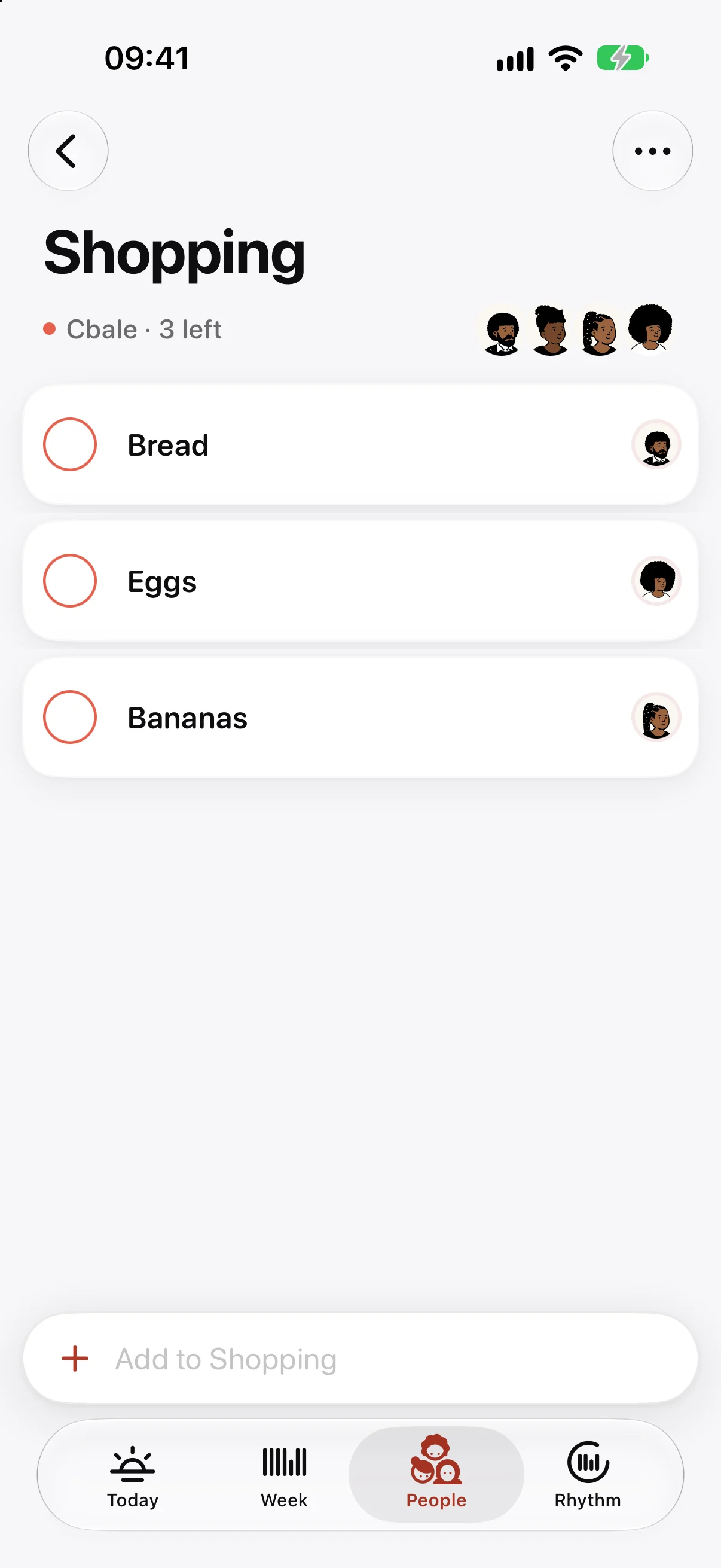
Type into the field at the bottom of the list, “Add to Shopping”, and the item goes on. Tap an item to give it more detail: how many (“2, or 500 g”) and a note (“The oat one”), which is useful when the person shopping isn’t the person who wanted it.
At the end of each row is the face of whoever added it. Tap the circle beside an item to tick it, and it moves out of the way into a folded section, “1 ticked”, with the face of whoever ticked it. Open that section to see what’s already in the basket, or choose Clear to empty it. If you clear by mistake, Undo puts the items back.
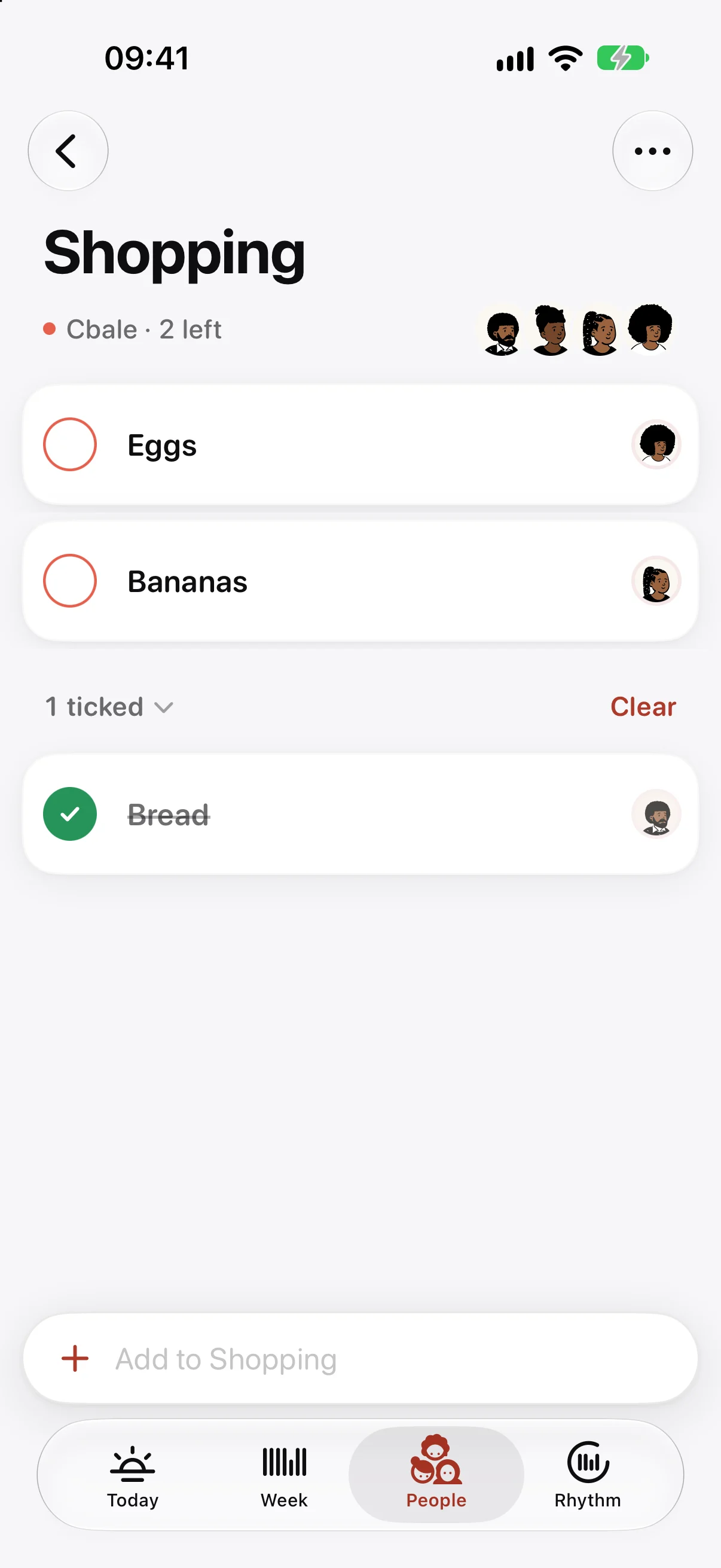
You can drag items into the order you walk round the shop, and swipe one away to remove it. The header shows the group and how many things are left, such as “Cbale · 2 left”.
Knowing when someone adds something
Each list has “Tell me when someone adds” in its menu. Turn it on and you get a quiet notification when someone else puts something on the list, such as “Jo added 2 things”, with what they added. It’s off for every list until you turn it on, and it’s your choice alone: it changes nothing for anyone else in the group.
From the meal plan to the list
If you plan meals in Ethos, they live on the week. Dinner is always there, and you can add breakfast and lunch in Settings. Write what’s for dinner on a day, add its ingredients, and choose “Add ingredients to Shopping”. They go onto the group’s Shopping list, and Ethos makes the list if the group doesn’t have one yet. If you’re in more than one group, it asks which.
On the night, Today shows “Tonight:” and the meal’s name, and a meal can be marked as for the family.
Without opening the app
You don’t have to open a list to use it.
- The List widget puts one shared list on your Home Screen in a small or medium size, and you can tick things off from it.
- Ask Siri, “Add to the shopping list in Ethos”, and Siri asks what to add. “Open a list in Ethos” goes straight to one.
- In Messages, the Ethos drawer can drop a list into a conversation as a bubble that shows how many things are left, such as “Shopping · 4 left”.
Widgets, Siri and Shortcuts covers every widget and phrase.
On iPad and iPhone Duo
When there’s room for two pages, a list spreads out: “To get” on the left and “In the basket” on the right. You can see what’s left and what’s already been picked up at the same time, which helps when two people are in different aisles. The family organiser page shows how lists fit alongside shared routines, turns on the bins, notes and countdowns.
Questions
Can my partner and I share a shopping list on iPhone?
Yes. Put the list in a group you’re both in, and you can both add to it and tick it from your own iPhone. Each of you needs Ethos and iCloud. Making the group and inviting someone needs Ethos Plus; joining is free.
Can I see who added something to the list?
Yes. Each item shows the face of the person who added it. Once ticked, it shows the face of the person who ticked it.
What happens to ticked items?
They fold away into a section under the list, such as “3 ticked”, so the list only shows what’s still to get. Choose Clear to empty that section, and Undo if you change your mind.
Can I add to the shopping list with Siri?
Yes. Say “Add to the shopping list in Ethos” and Siri asks what to add. You can also name a list: “Add to Groceries in Ethos”, if that’s what you called it.
More from the blog
- A chore rota app for the bins and the school runTo keep a chore rota in Ethos, add the job to your family group as a shared routine, turn on “Take turns”, and tap the people on the rota in the order it should go round.
- A Cozi alternative for iPhone, Mac and Apple WatchIf your whole household uses Apple devices, Ethos is a Cozi alternative built around the jobs a family repeats: shared routines, turns on the bins, and one shopping list, on iPhone, iPad, Mac and Apple Watch.
- A daily planner for Mac that lives in the menu barEthos for Mac puts today’s count in the menu bar as a small ring, so you can see how much of the day is kept and tick the next thing without opening a window.